Analysis · PlicGo / Captura School Portal
Analysis: PlicGo / Captura School Portal analysis
SSI/Strawbridge's incumbent portal (rebranded from PLIC Go! to Captura School Portal). This is the closest competitor to what we're building. Inventory below is derived from screenshots of a live demo project (Demo 25_26, 14 subjects) and a sample rendered layout PDF.
Top-level information architecture
A project (e.g. Demo 25_26) has four primary tabs:
- Subjects — roster of people in the shoot, plus duplicate detection and directory export.
- Download Exports — bulk data exports in either standard SIS formats or studio-authored custom formats, with a downloads history.
- Print Layouts — ID-card-style print layouts that bind subject fields + images into a 4-step print wizard ending in an async PDF render.
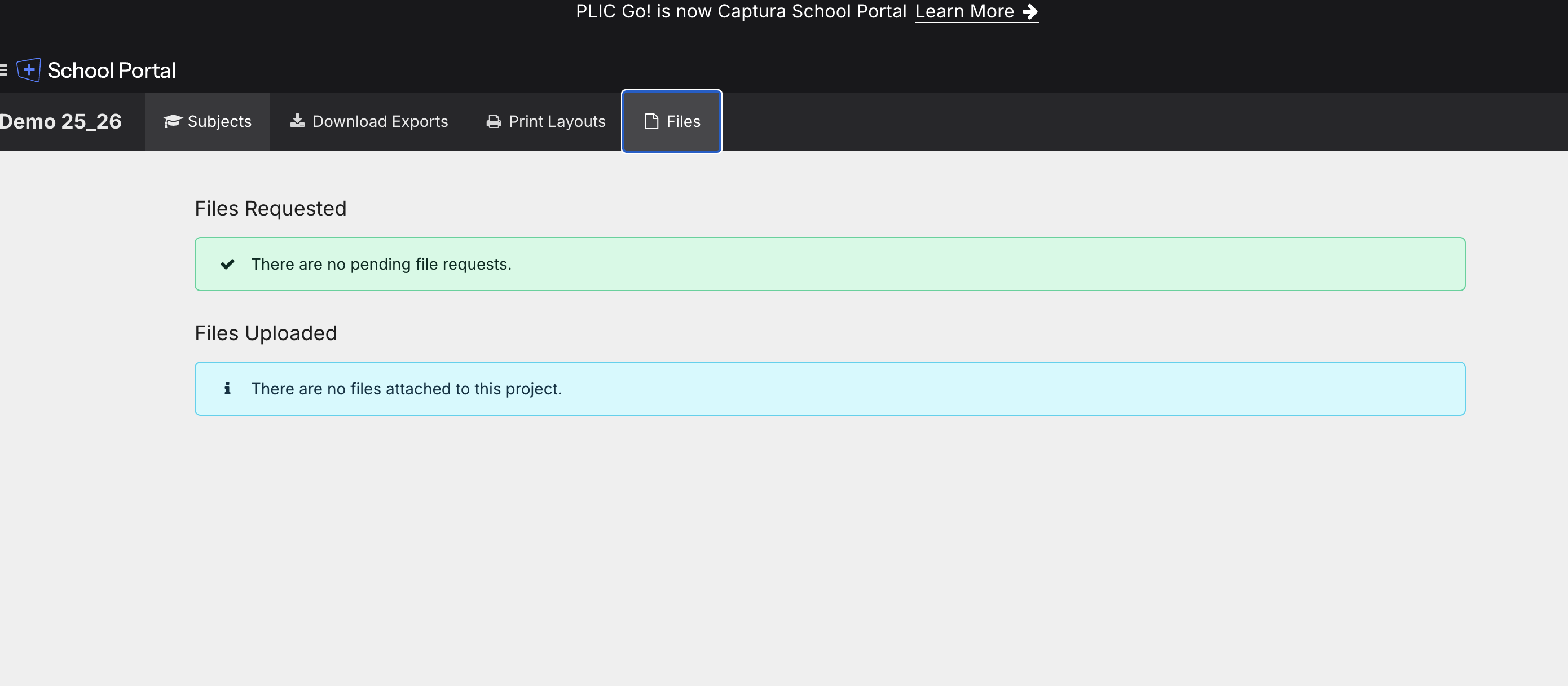
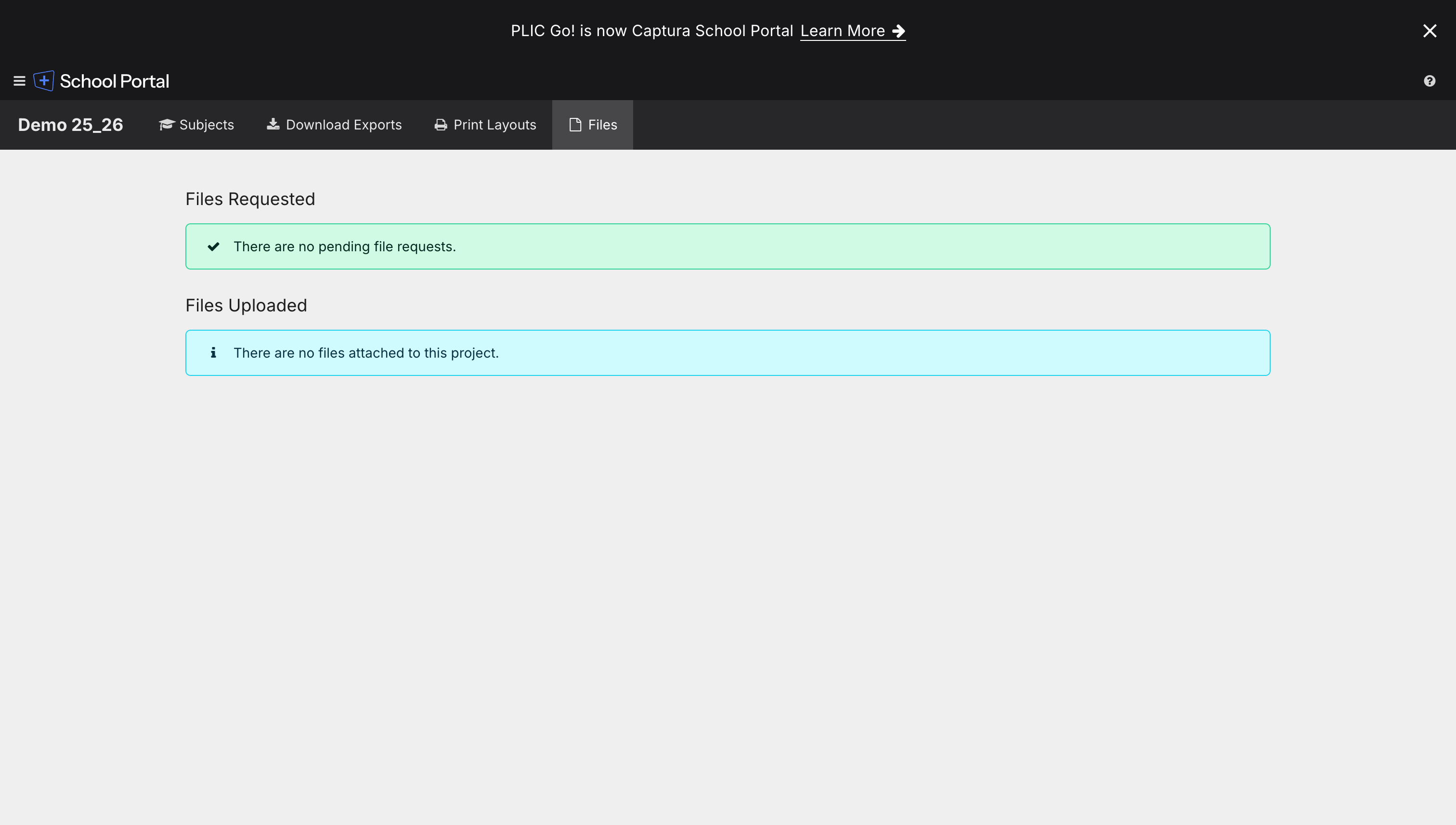
- Files — file requests + uploaded files for the project.
1. Subjects tab
All subjects view
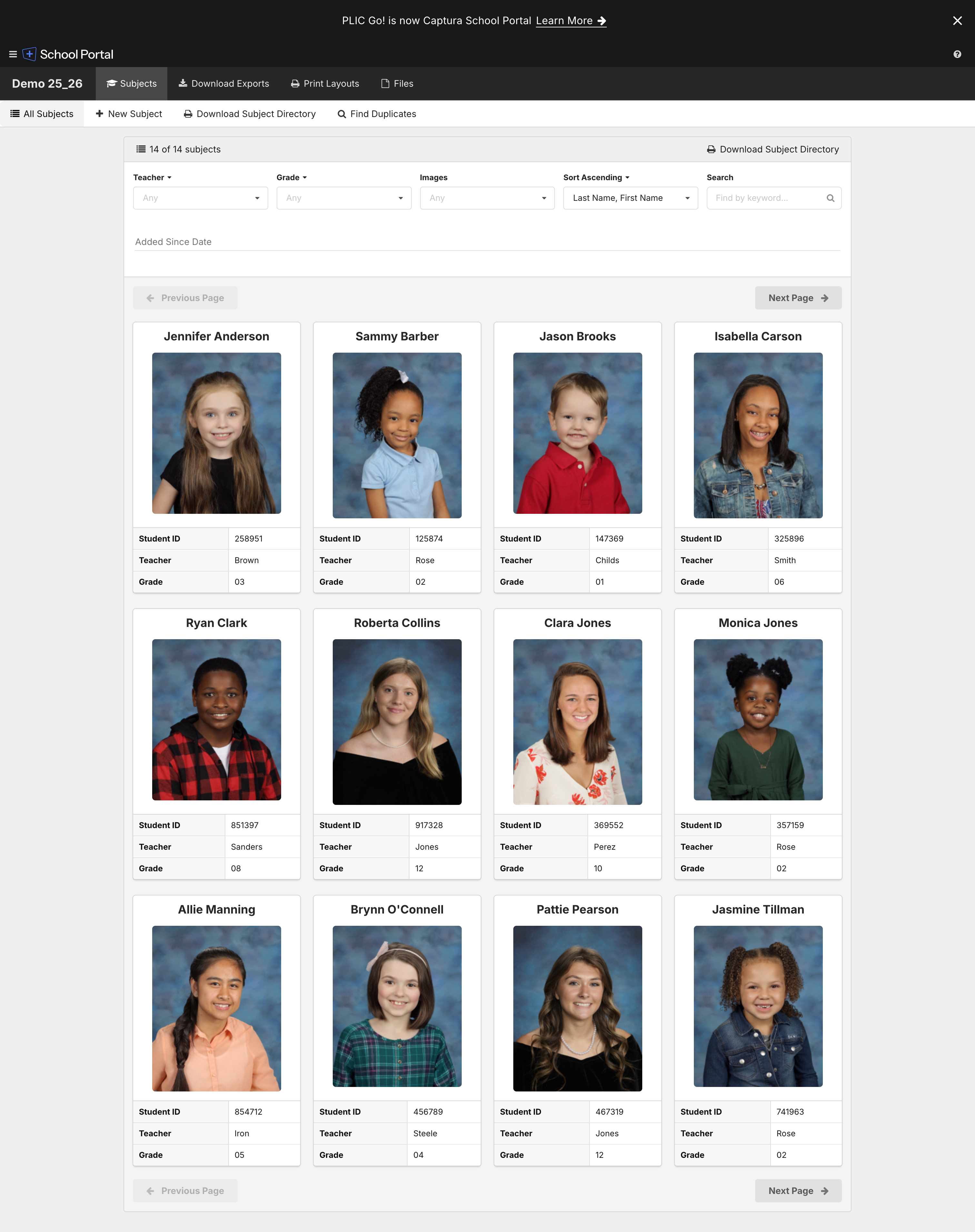
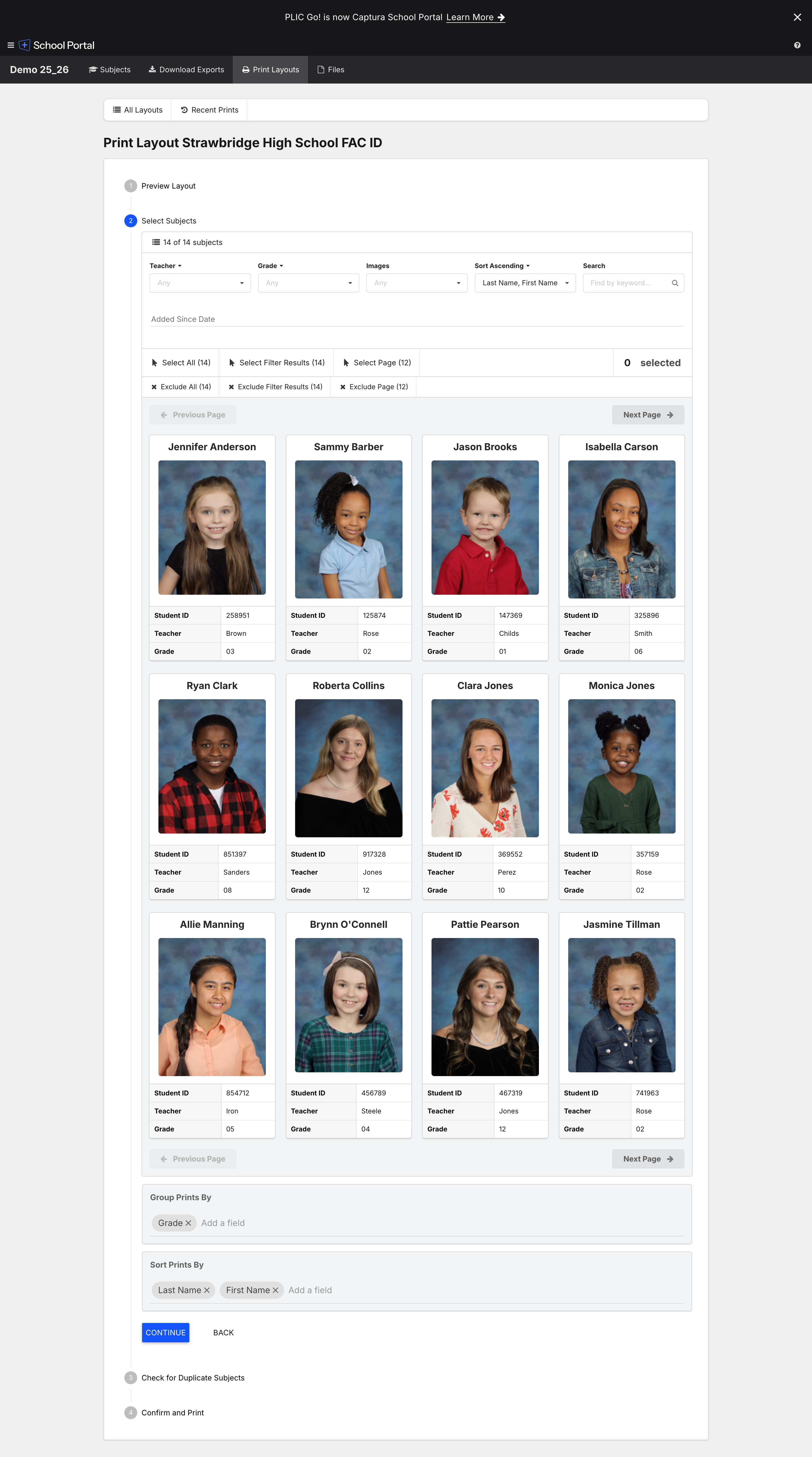
Card grid, four columns. Each card shows the subject's name as the title, a portrait image, and a compact three-row metadata table: Student ID, Teacher, Grade. Header row offers filters by Teacher, Grade, Images (presumably "has / missing"), a sort dropdown defaulting to "Last Name, First Name", a free-text search, and an "Added Since Date" picker. Sub-tabs above the grid: All Subjects, + New Subject, Download Subject Directory, Find Duplicates.
New Subject form
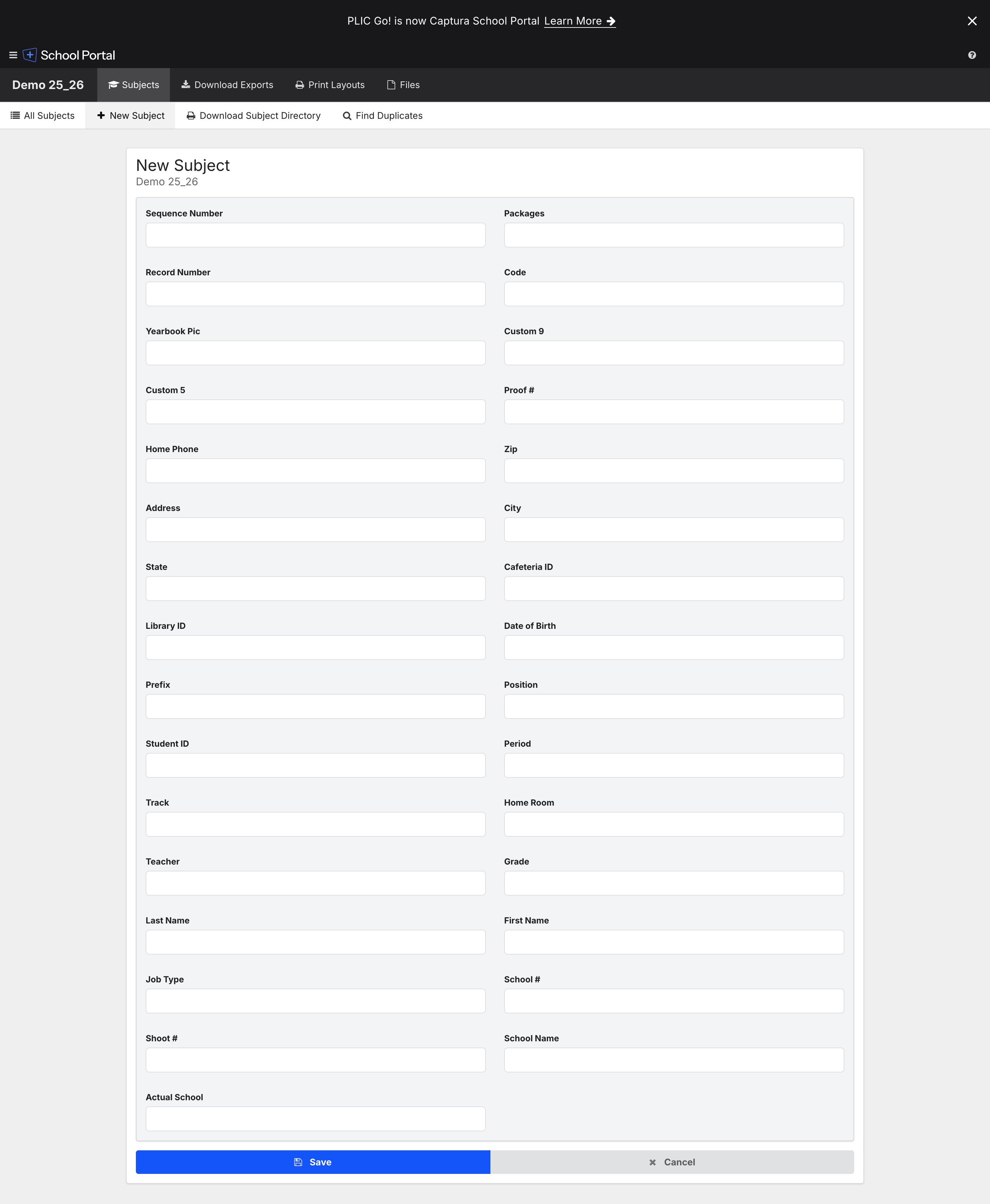
Two-column form with ~30 fields, mostly free-text. The field list is illustrative of how broad the school-photography subject schema needs to be: this is not "first name, last name, photo".
Fields observed: Sequence Number, Record Number, Yearbook Pic, Custom 5, Custom 9, Home Phone, Address, State, Library ID, Prefix, Student ID, Track, Teacher, Last Name, First Name, Job Type, Shoot #, Actual School, Packages, Code, Proof #, Zip, City, Cafeteria ID, Date of Birth, Position, Period, Home Room, Grade, School #, School Name.
Schema design implication
Many fields are SIS-system-specific (Cafeteria ID, Library ID, Track) and not universally present. Our subject schema needs a stable core + an extensible "custom fields" mechanism. The number of Custom 5/Custom 9 slots hints that the incumbent uses fixed-position custom columns rather than truly dynamic ones.
Find Duplicates
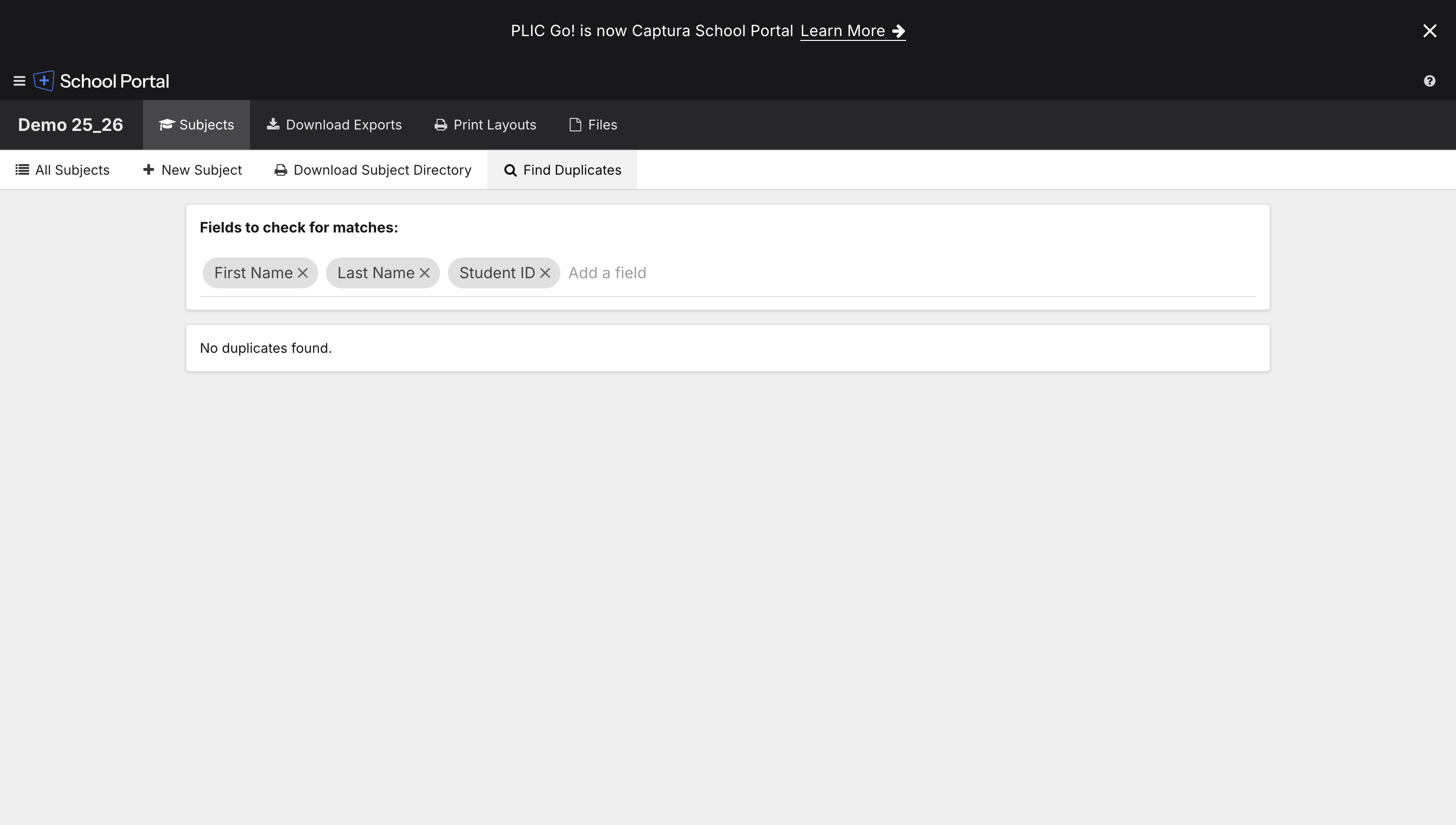
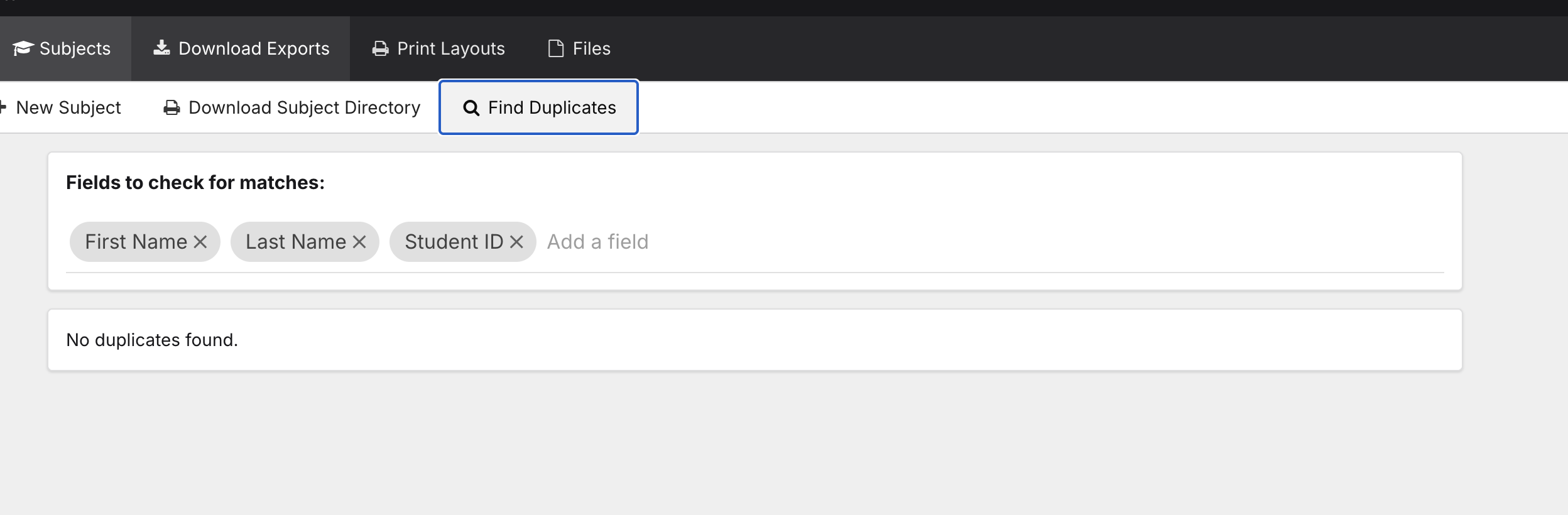
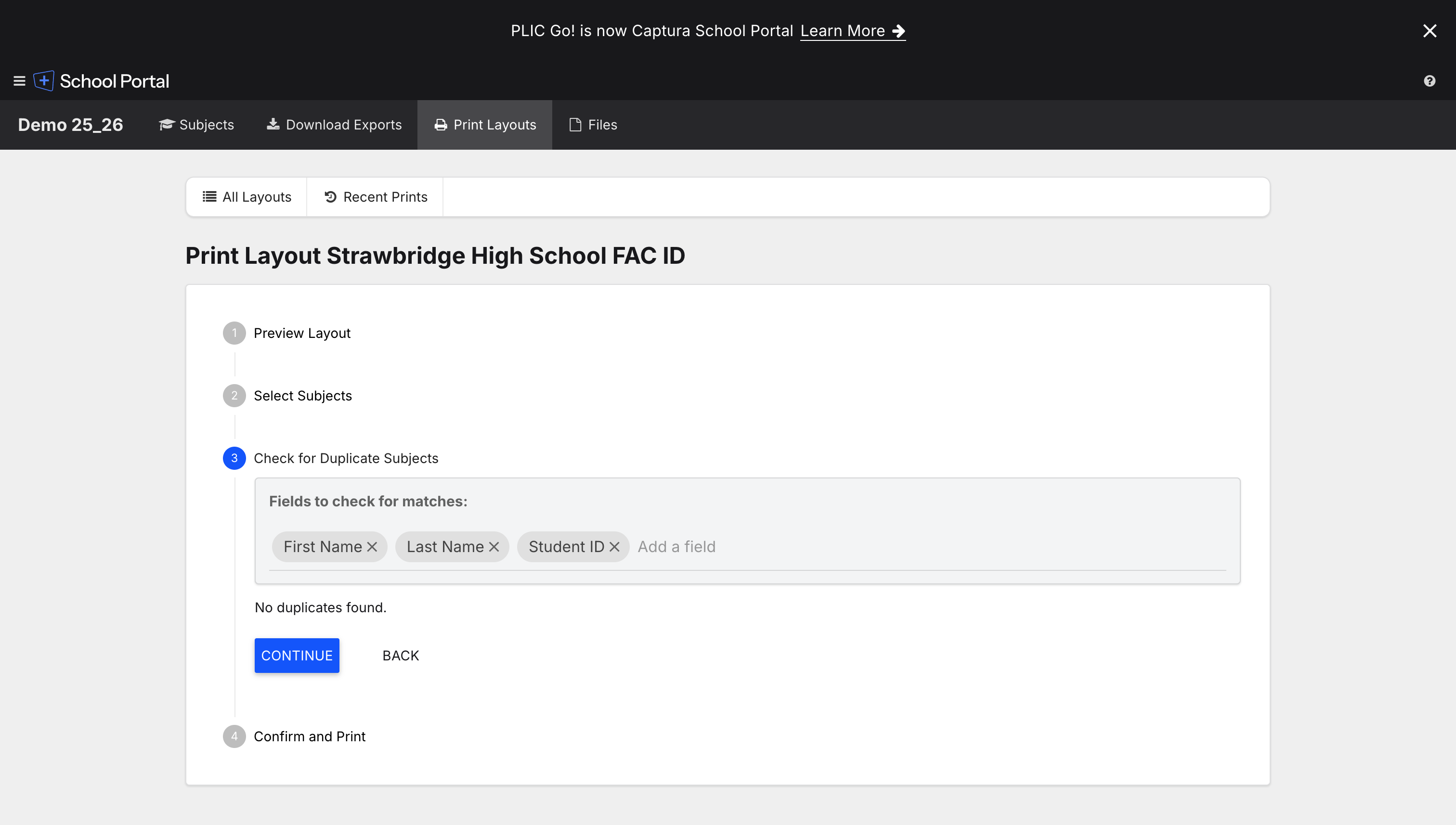
Field-picker UI. The user adds the fields to match on (defaults shown: First Name, Last Name, Student ID). The "Add a field" autocomplete suggests it accepts any subject field. Results render below — in the demo project, "No duplicates found."
Download Subject Directory
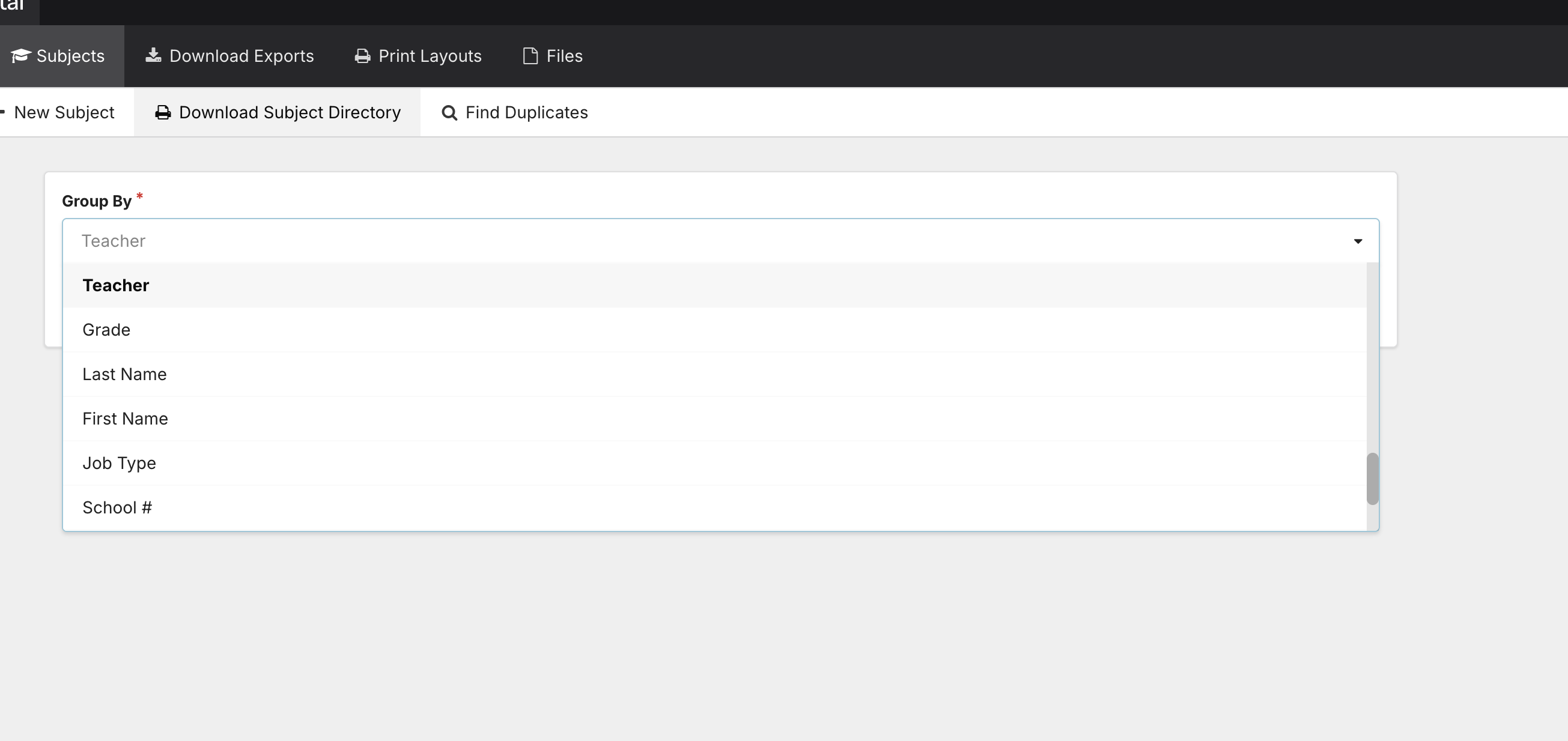
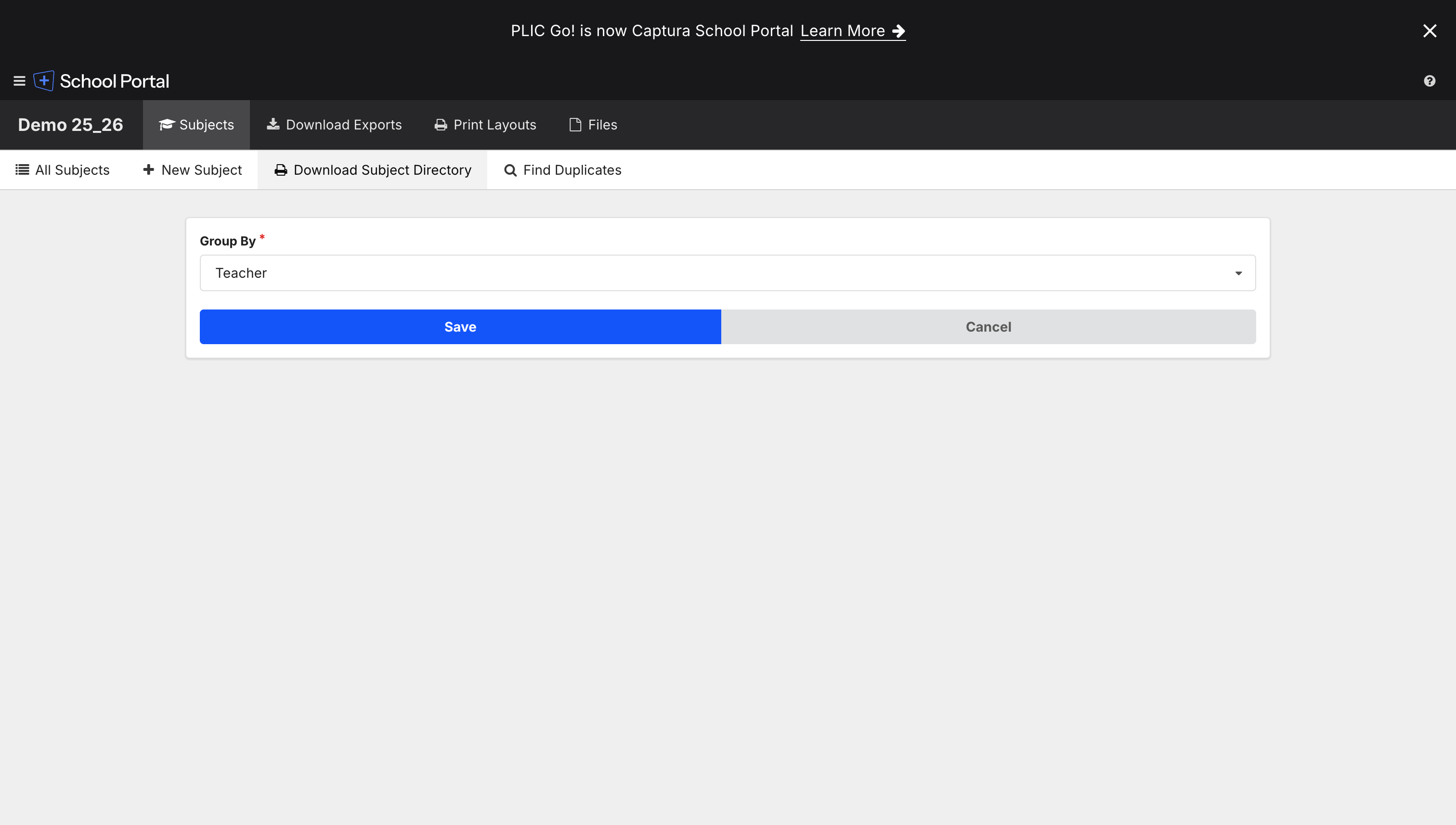
Single required selector — Group By. Dropdown options observed: Teacher, Grade, Last Name, First Name, Job Type, School #. Save / Cancel actions. The output (not shown) is presumably a paginated PDF directory grouped by the chosen field with name + portrait per row.
2. Download Exports tab
Top bar
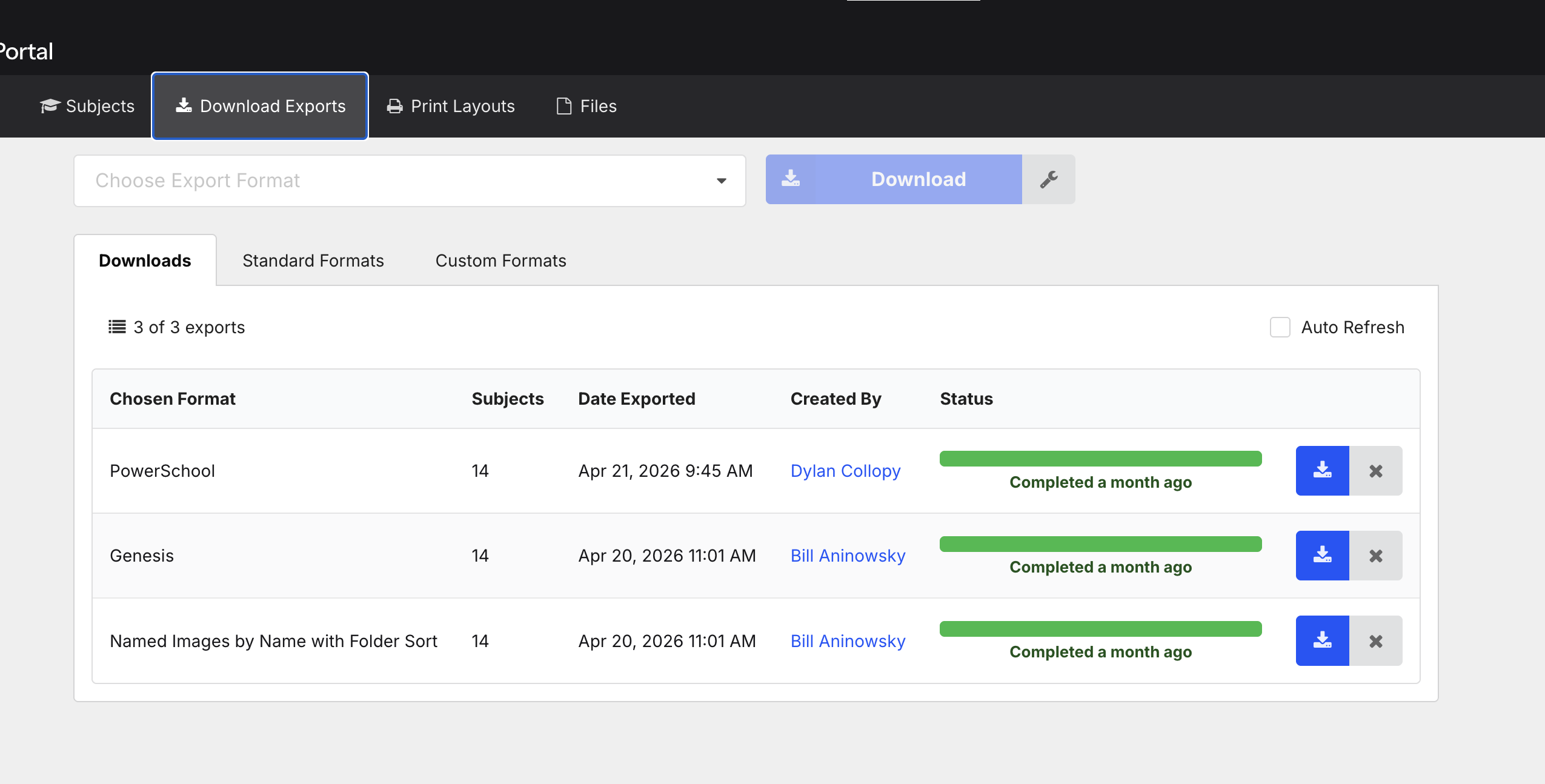
Two controls always on screen: a "Choose Export Format" dropdown and a primary "Download" button (with a wrench affordance for per-format options). Below, three sub-tabs: Downloads (history), Standard Formats, Custom Formats.
Downloads history
Table of past exports: Chosen Format, Subjects (count), Date Exported, Created By (linked to user), Status (large green progress bar + "Completed a month ago"), and per-row download / delete buttons. An "Auto Refresh" checkbox sits in the header — implying exports are async jobs with progress polling.
Standard Formats — 25 entries
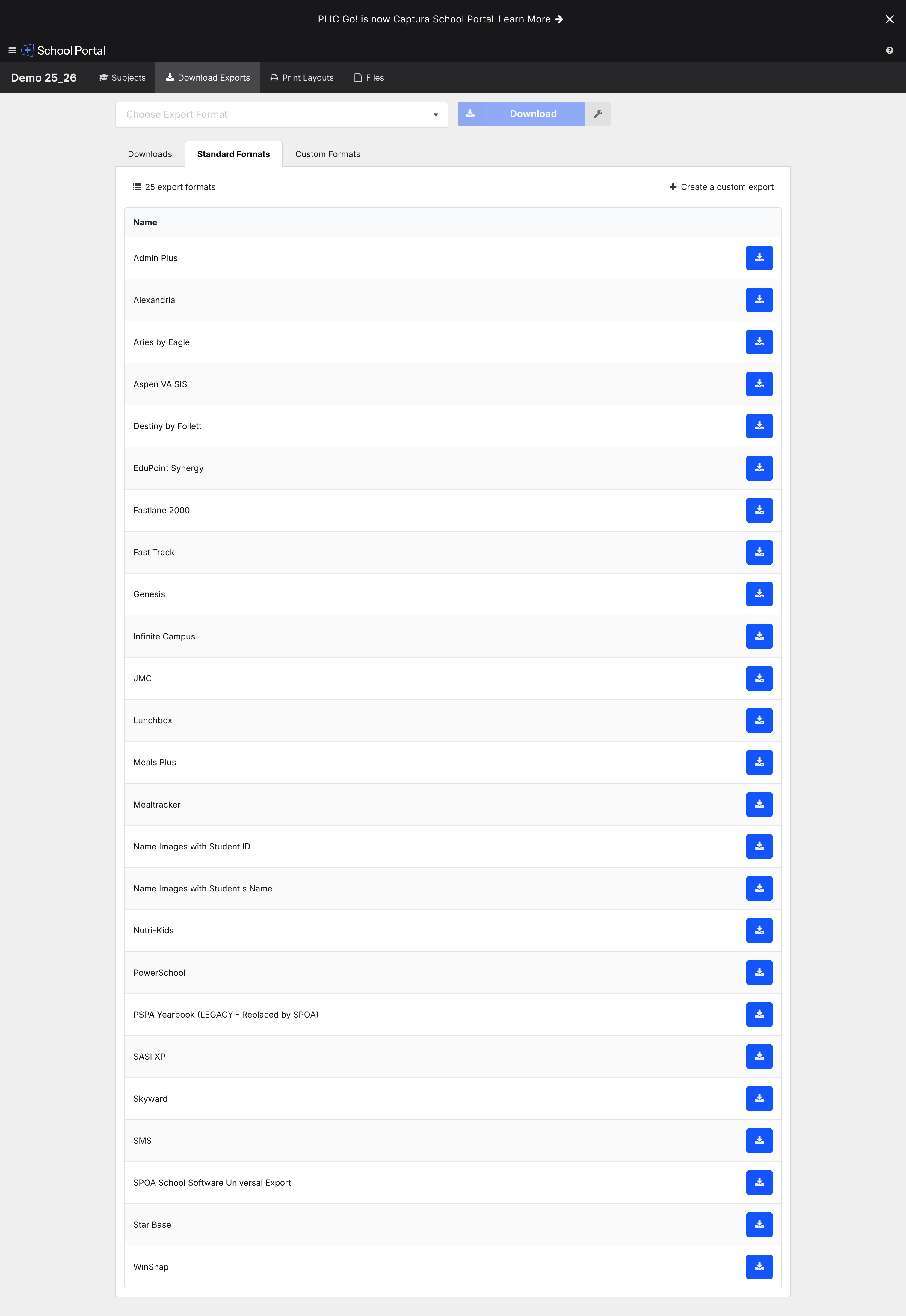
Vendor-supplied formats keyed to common SIS or campus-services systems. Each row has a single download action.
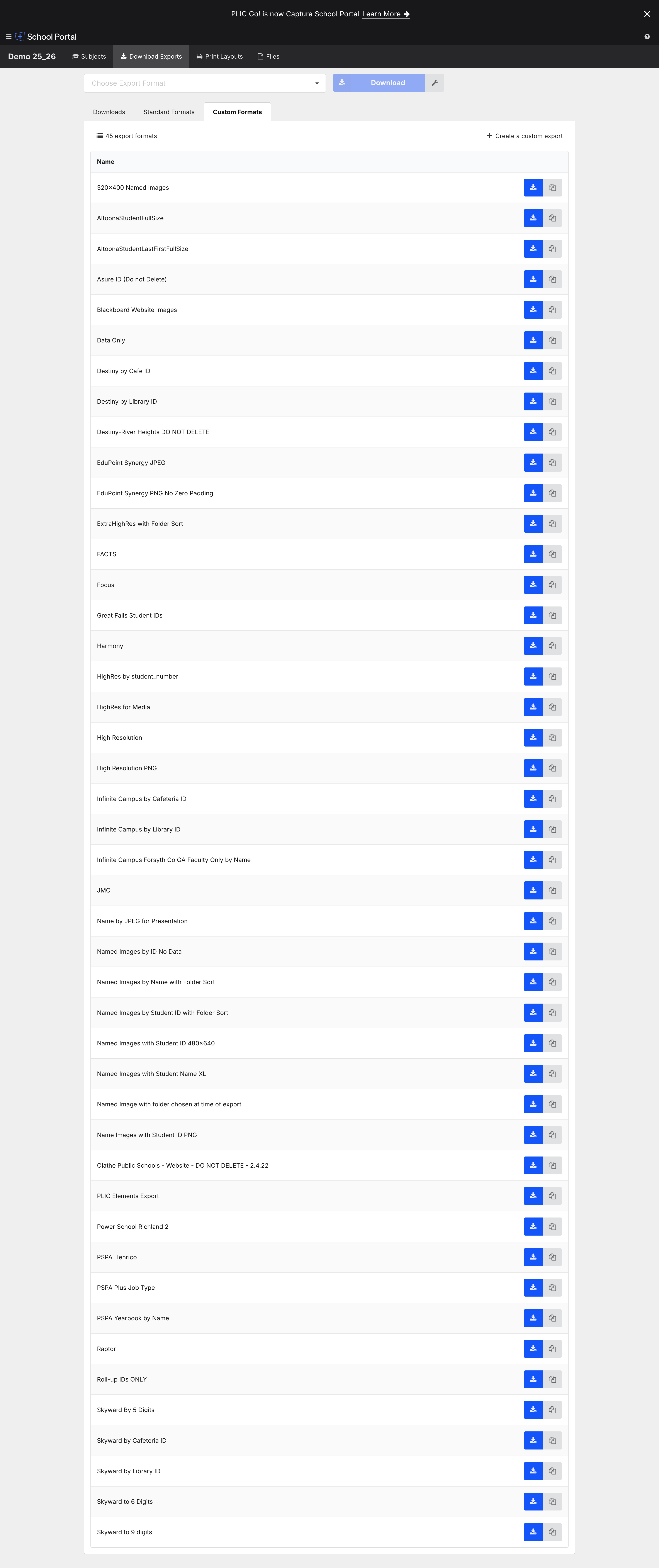
Full list of 25 standard formats
- Admin Plus
- Alexandria
- Aries by Eagle
- Aspen VA SIS
- Destiny by Follett
- EduPoint Synergy
- Fastlane 2000
- Fast Track
- Genesis
- Infinite Campus
- JMC
- Lunchbox
- Meals Plus
- Mealtracker
- Name Images with Student ID
- Name Images with Student's Name
- Nutri-Kids
- PowerSchool
- PSPA Yearbook (LEGACY — Replaced by SPOA)
- SASI XP
- Skyward
- SMS
- SPOA School Software Universal Export
- Star Base
- WinSnap
Custom Formats — 45 entries on this account
Studio- (or possibly customer-) authored variations on the standard formats. Per-row affordances are download and duplicate (the icon next to download), and a "+ Create a custom export" button in the header.
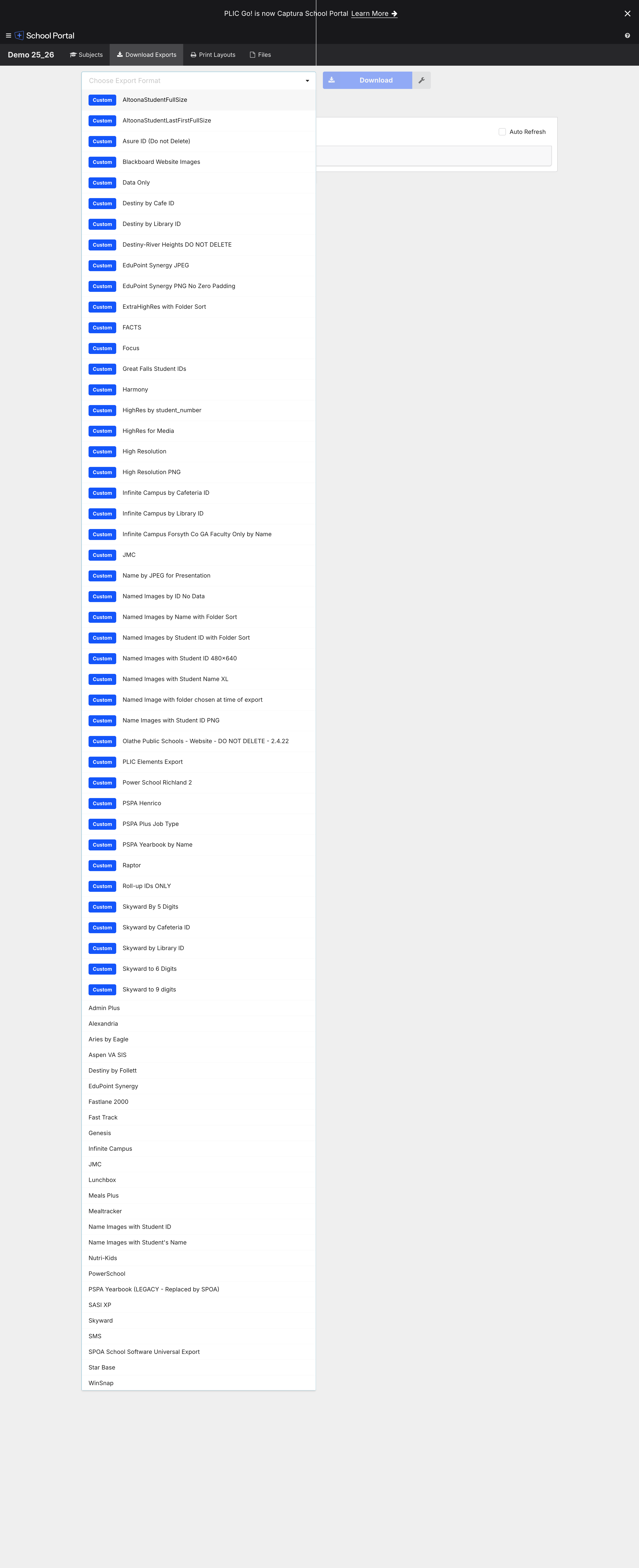
Full list of 45 custom formats
- 320×400 Named Images
- AltoonaStudentFullSize
- AltoonaStudentLastFirstFullSize
- Asure ID (Do not Delete)
- Blackboard Website Images
- Data Only
- Destiny by Cafe ID
- Destiny by Library ID
- Destiny-River Heights DO NOT DELETE
- EduPoint Synergy JPEG
- EduPoint Synergy PNG No Zero Padding
- ExtraHighRes with Folder Sort
- FACTS
- Focus
- Great Falls Student IDs
- Harmony
- HighRes by student_number
- HighRes for Media
- High Resolution
- High Resolution PNG
- Infinite Campus by Cafeteria ID
- Infinite Campus by Library ID
- Infinite Campus Forsyth Co GA Faculty Only by Name
- JMC
- Name by JPEG for Presentation
- Named Images by ID No Data
- Named Images by Name with Folder Sort
- Named Images by Student ID with Folder Sort
- Named Images with Student ID 480×640
- Named Images with Student Name XL
- Named Image with folder chosen at time of export
- Name Images with Student ID PNG
- Olathe Public Schools — Website — DO NOT DELETE — 2.4.22
- PLIC Elements Export
- Power School Richland 2
- PSPA Henrico
- PSPA Plus Job Type
- PSPA Yearbook by Name
- Raptor
- Roll-up IDs ONLY
- Skyward By 5 Digits
- Skyward by Cafeteria ID
- Skyward by Library ID
- Skyward to 6 Digits
- Skyward to 9 digits
What "custom" probably means
Looking at the naming patterns, custom formats appear to be a (data-mapping × image-naming-rule × folder-grouping × subject-filter × file-format) tuple. They're not arbitrary code — they're a structured form. "Skyward to 6 Digits" implies a left-padded student-ID rule on top of the standard Skyward format. "Olathe Public Schools — DO NOT DELETE — 2.4.22" implies versioned, school-scoped overrides.
3. Print Layouts tab
Gallery
Two sub-tabs: All Layouts and Recent Prints. A folder selector at the top scopes the gallery to a particular layout set (e.g. 1 - Digital Services PVC Single Print IDs 25_26, containing 4 layouts). Each layout tile is a thumbnail (e.g. Strawbridge High School FAC ID, 2.125 × 3.375), a name, dimensions, and a "Select Layout" button.
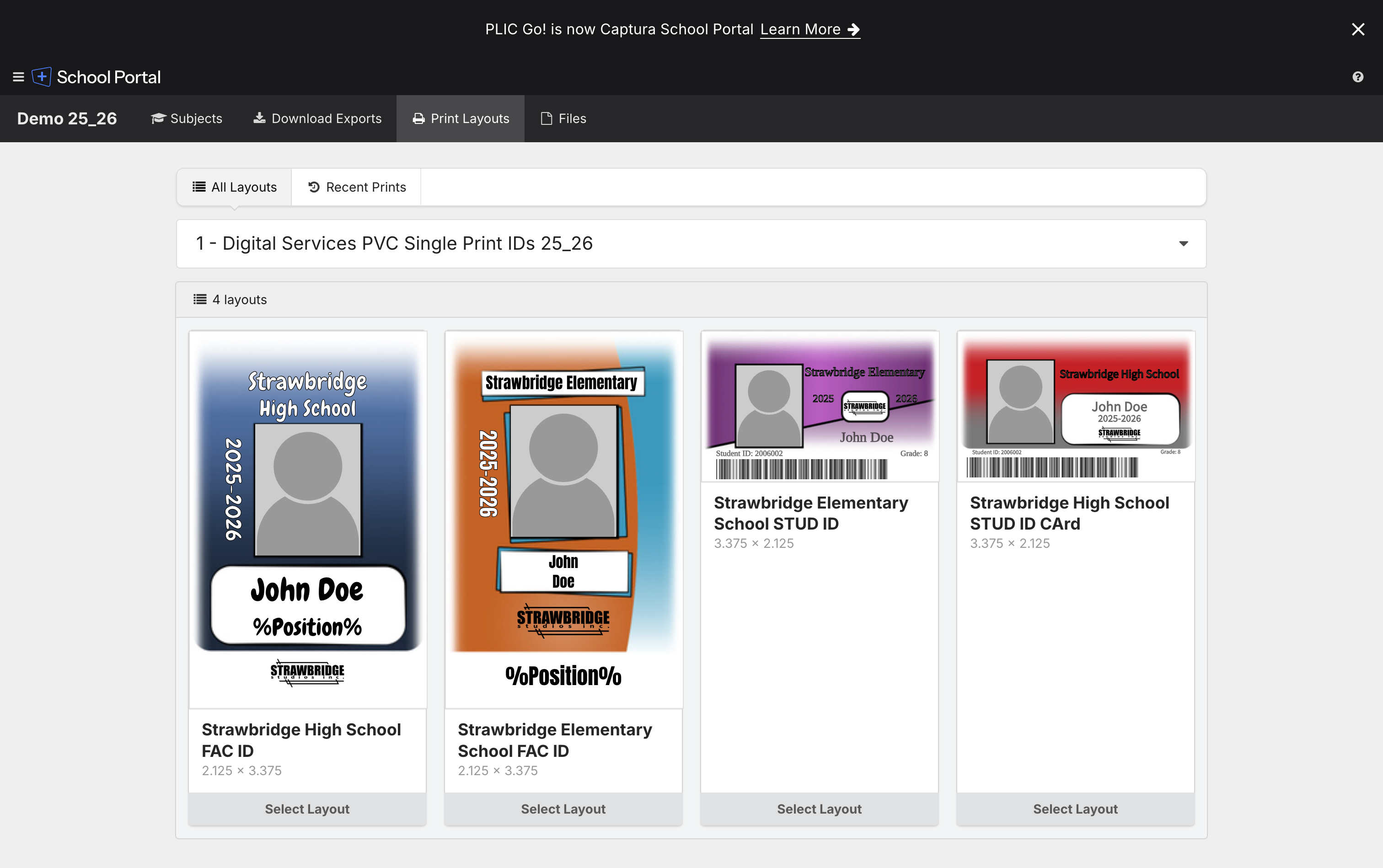
The 4-step print wizard
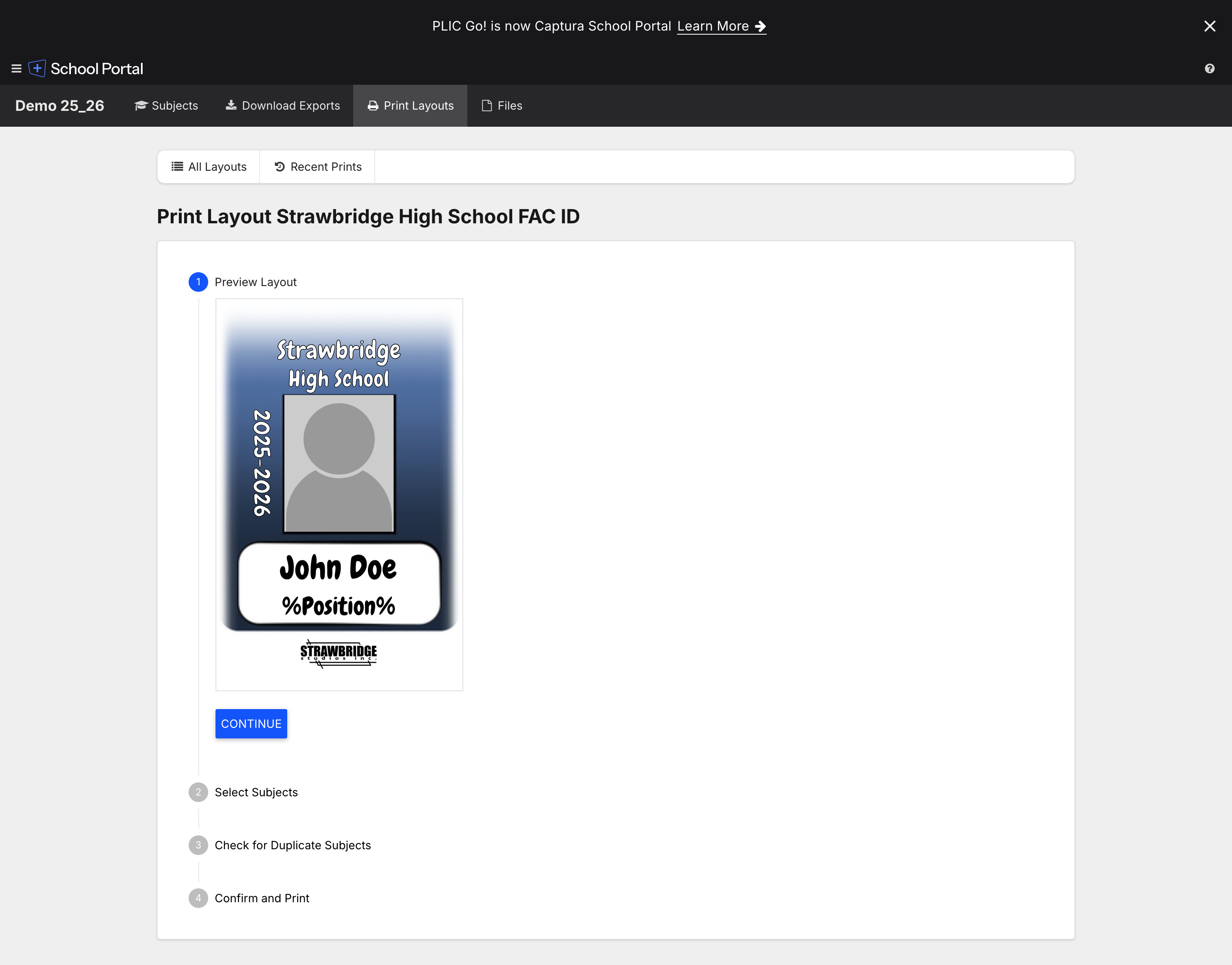
After selecting a layout the user goes through a vertical-stepper wizard:
- Preview Layout — confirms the chosen template with a stand-in subject ("John Doe" / placeholder photo).
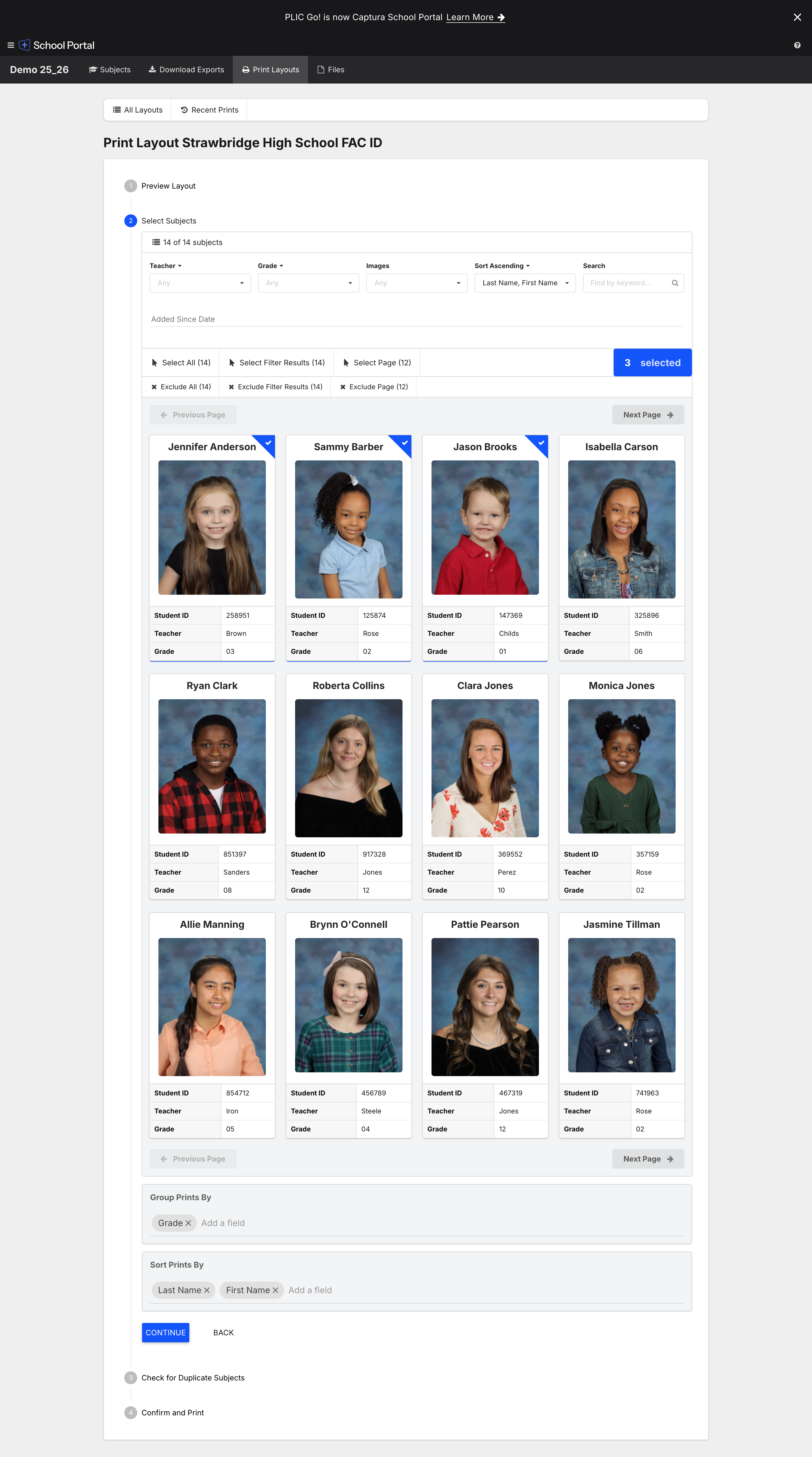
- Select Subjects — the same subject grid as the Subjects tab, with Select All / Select Filter Results / Select Page / Exclude variants. Two trailing sections: Group Prints By (default: Grade) and Sort Prints By (default: Last Name, First Name).
- Check for Duplicate Subjects — same field-picker as the Subjects tab's Find Duplicates, surfaced inline as a guardrail before printing.
- Confirm and Print — submits an async render job.
Async render
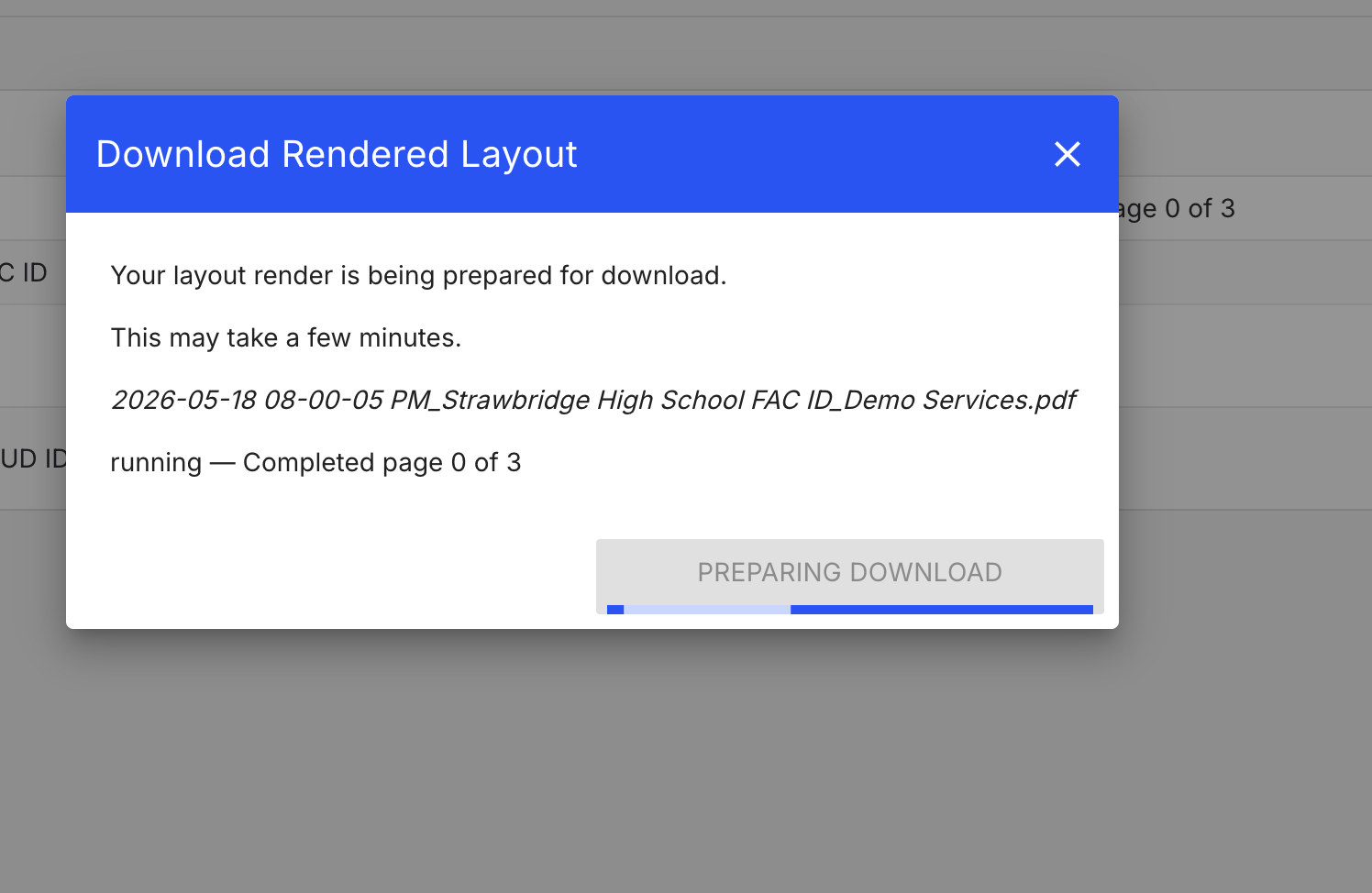
Submitting "Confirm and Print" opens a modal: "Your layout render is being prepared for download. This may take a few minutes." A progress bar advances with a "running — Completed page 0 of 3"-style status. The output is a PDF with one page per layout instance, grouped/sorted per the wizard settings.
A sample of the produced PDF is preserved at sample-render.pdf (2026-05-18, Strawbridge High School FAC ID, Demo Services).
Layout authoring (not visible in screenshots)
The screenshots only show consumer use of pre-authored layouts. The fact that custom-named layouts exist (school-specific names, custom dimensions, embedded studio branding, placeholder strings like %Position%) strongly implies an admin-side layout editor elsewhere in the product. That editor is in scope for Phase 3 of our roadmap and is the single largest unknown in this whole project.
Field-placeholder syntax
The sample PDF and the step-1 preview both render %Position% verbatim where the binding didn't resolve. This tells us the template language is interpolated %FieldName% tokens, evaluated against the subject row, with no resolution → literal output. Our layout authoring tool must support the same convention if we want layout portability with incumbent assets.
4. Files tab
Two sections: Files Requested (pending file requests from the studio to the customer) and Files Uploaded (anything the customer has attached to the project). Both render an empty-state with a single line of copy in the demo project.
Cross-cutting observations
- Branding transition in flight: every screen carries a "PLIC Go! is now Captura School Portal — Learn More" banner. The product is mid-rebrand; expect terminology drift in any docs we ingest.
- Async jobs are first-class: both exports and prints surface a progress UI. We need a job model up front, not bolted on later.
- Bulk selection patterns repeat: Select All / Select Filter Results / Select Page / Exclude variants appear identically on the Subjects grid and the print wizard. One reusable selection component will pay off.
- Customer/studio overlap is loose: nothing in the screenshots shows a customer-vs-admin permission distinction. Likely the incumbent's customer portal is a separate product surface that we haven't captured here.
- Custom formats and custom layouts are clearly studio-authored: both have "Create a custom" affordances. Both need an admin authoring UI.